Export and Import with a File
Save your routines and events to a file, or bring them in from a file made on another device or by someone else. Just like starting from a template, a ready-made file is an easy way to begin. The file picker is a system screen of your phone, so its look and language may differ slightly with your device language and maker.
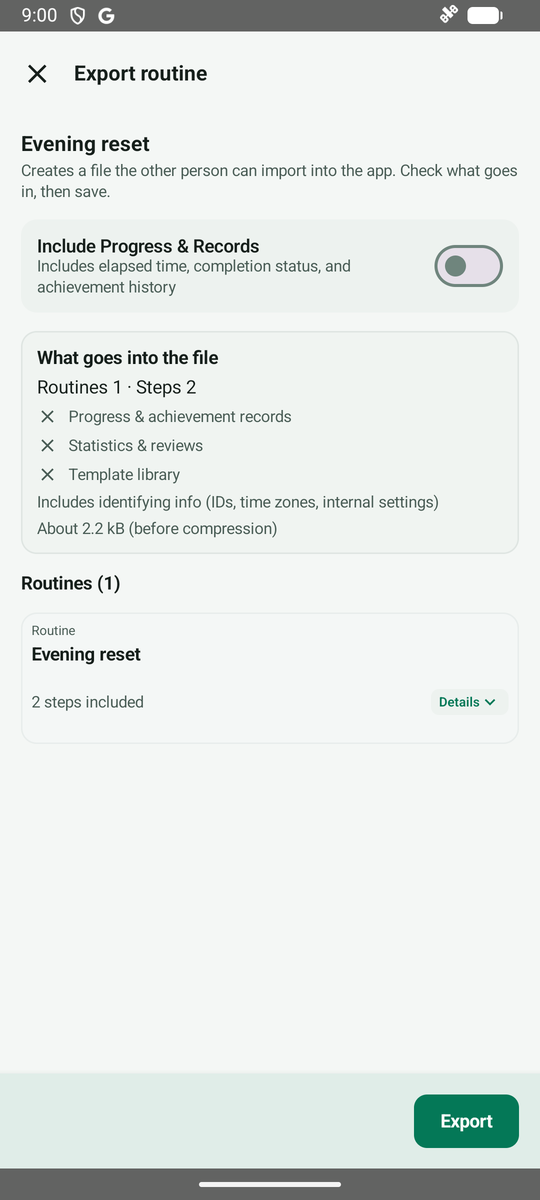
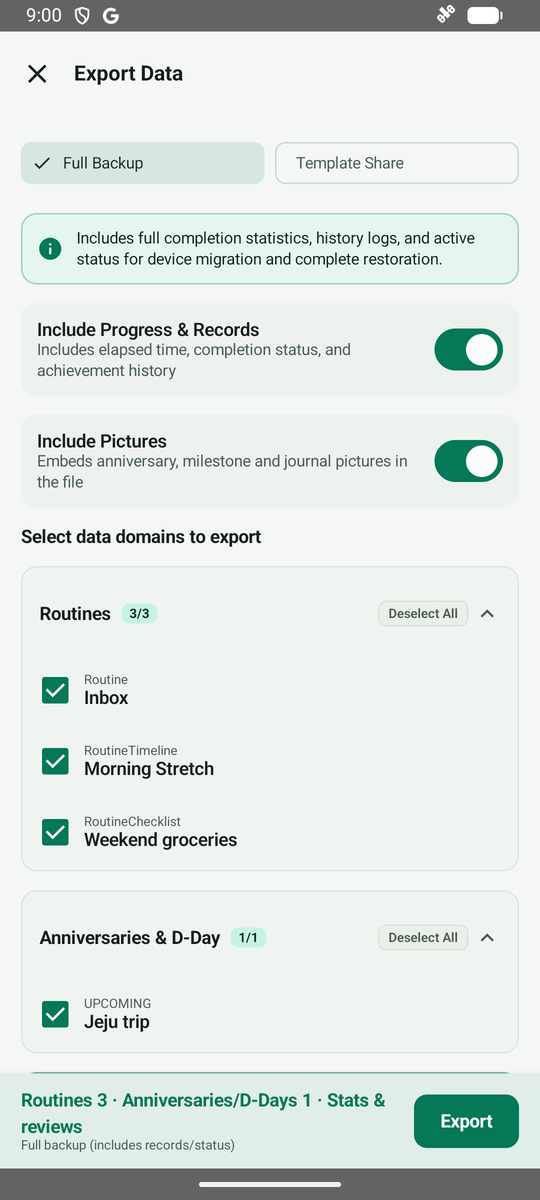
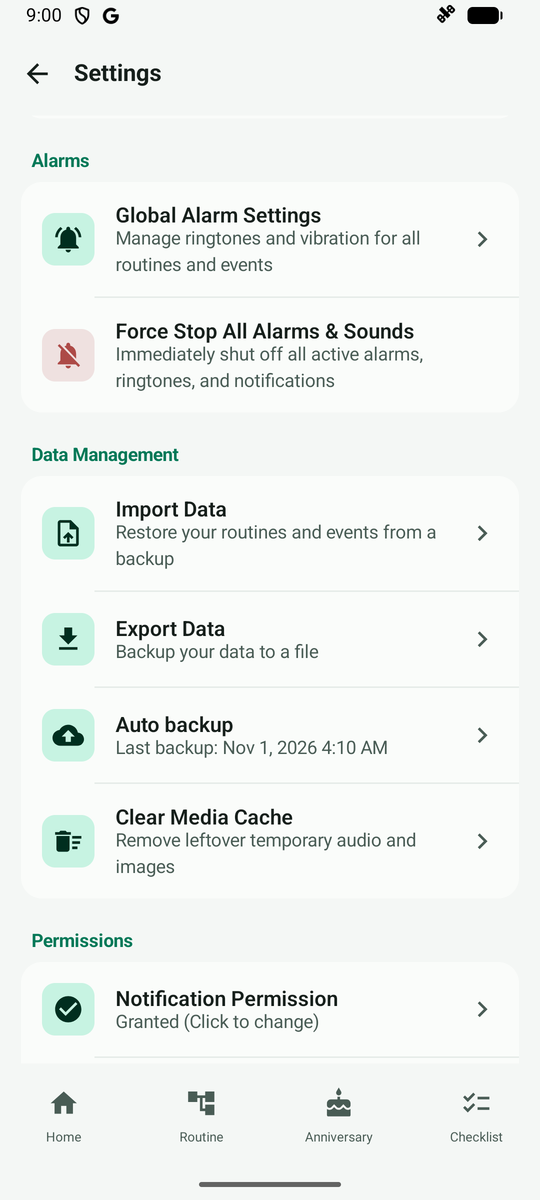
Open Export Data under Data Management in More > Settings. At the top choose Full Backup or Template Share, pick the routines and events to include below, then tap Export. Template Share makes a file for other people, so what goes into the file (item counts, an included/not-included list, details per item) is shown open at the bottom right away. Full Backup shows "This file contains all of your personal records. Don't share it with others." and the same details appear when you tap View contents.
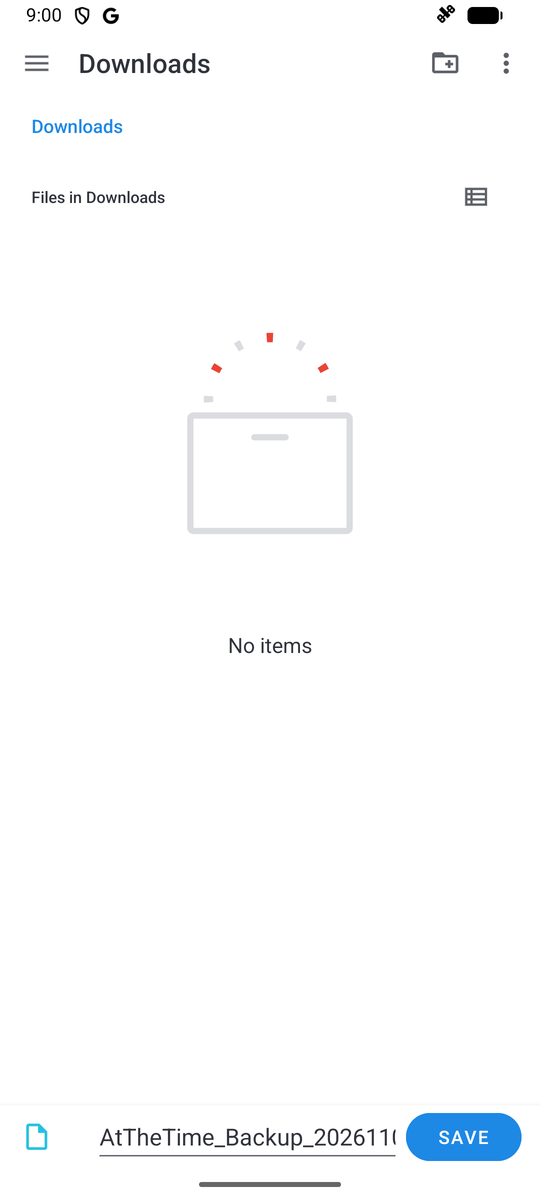
A screen asks where to save the file. Check the folder and file name, then tap Save.
When saving finishes, a notice shows the file name, where it was saved, its size and how many items were saved. Close it to return to Settings. Your file is at the location shown (usually the Downloads folder). Now tap Import Data to bring in a file.
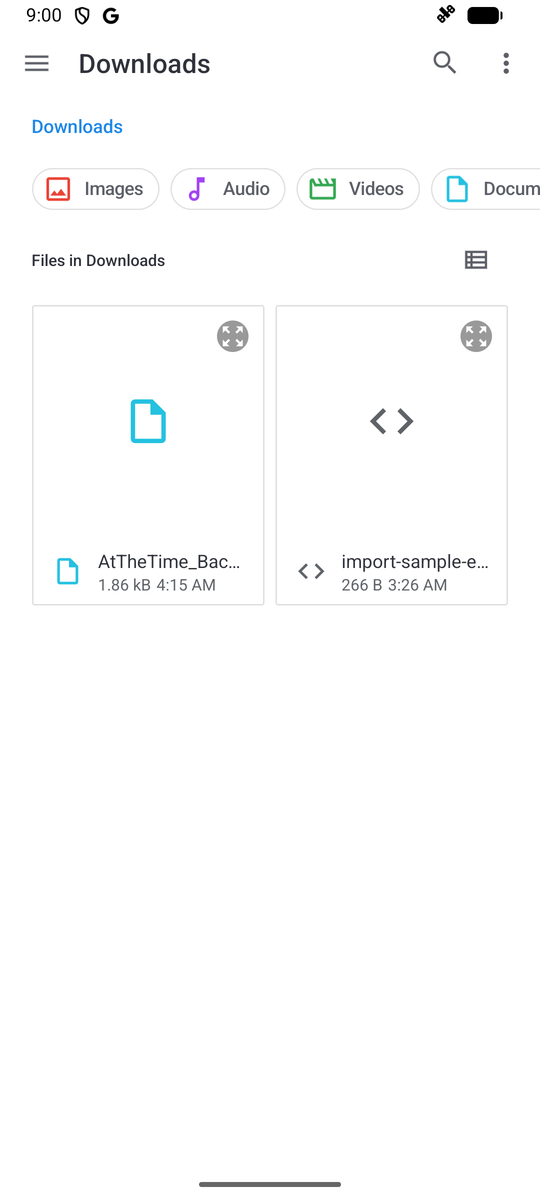
When the file list opens, tap the file you want to import. Besides files exported from the app, a sample file you downloaded can be picked the same way. Long file names may be shortened in the list.
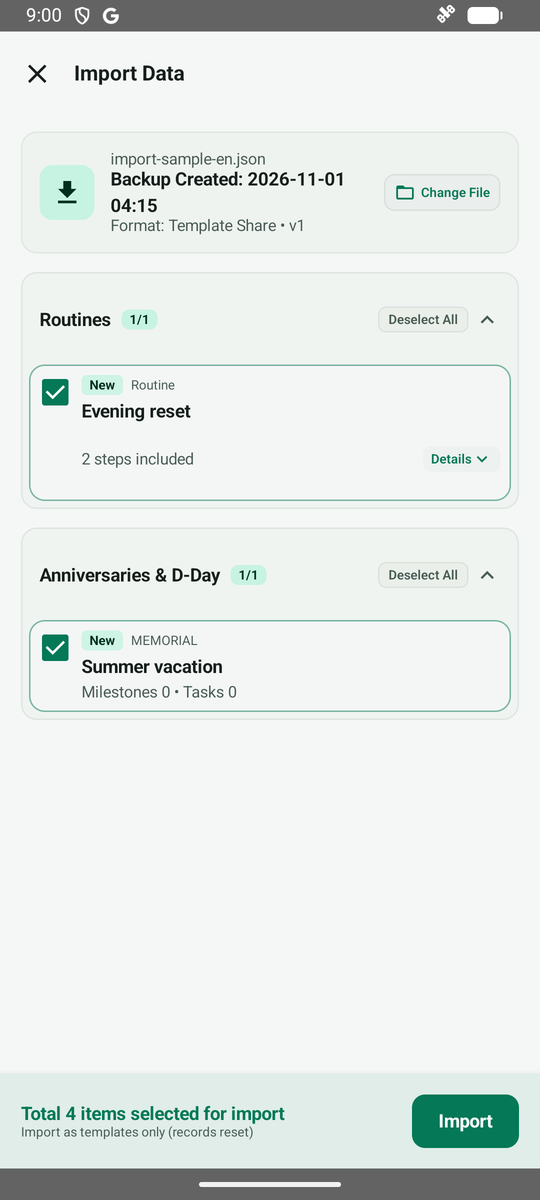
Before importing, you can preview the routines and events in the file. Items not yet in the app are marked New. Check the items you want, then tap Import.
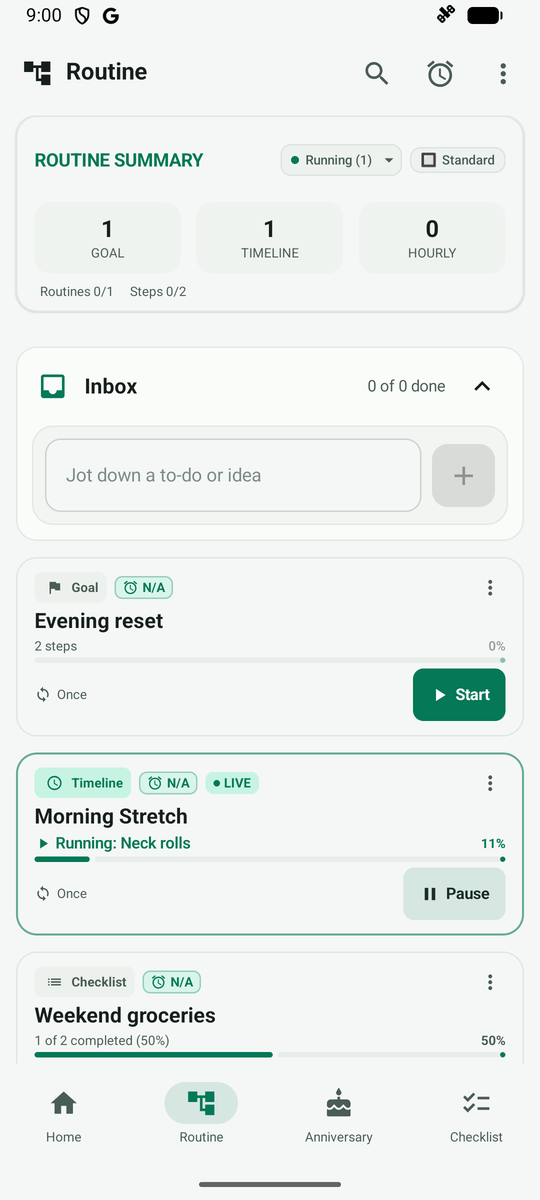
When importing finishes, the routines from the file appear in your Routine list. Check the events in the Anniversary tab.
To send just one routine or event, export it right from the item. In the routine list, press and hold a card and choose Export; on a routine, event or D-Day detail screen, open the More (three dots) menu at the top right and choose Export. Because this file goes to someone else, progress and pictures are left out by default, and a notice appears if you turn them on.