Create and Start a Step-by-Step Routine
How to create a routine whose steps run in order, and start it. The example is a 'Morning Stretch' routine.
Open the Routine tab. Type a new routine name in the box at the top.
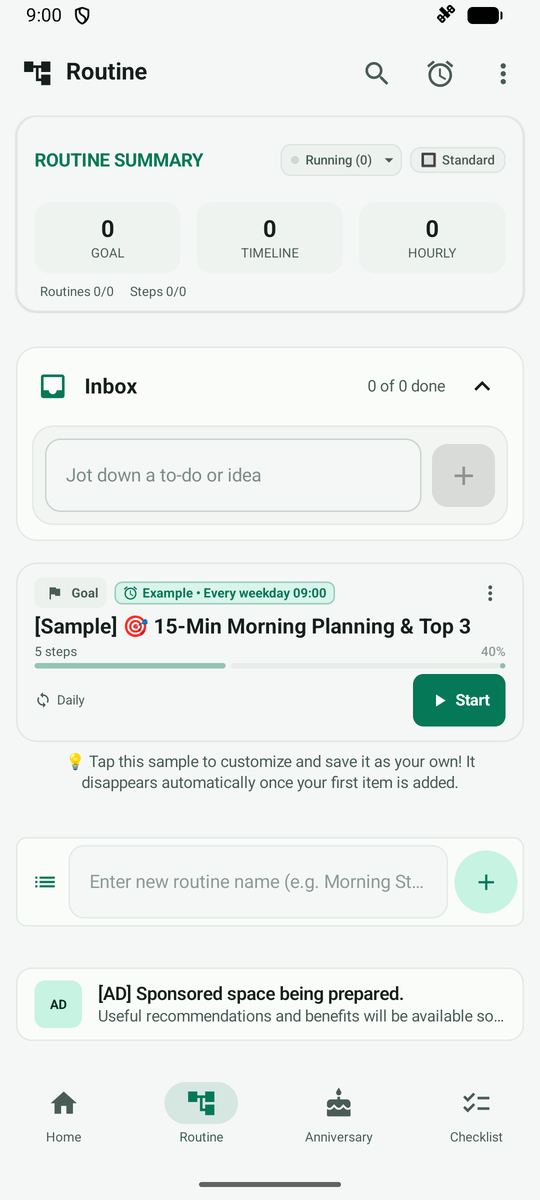
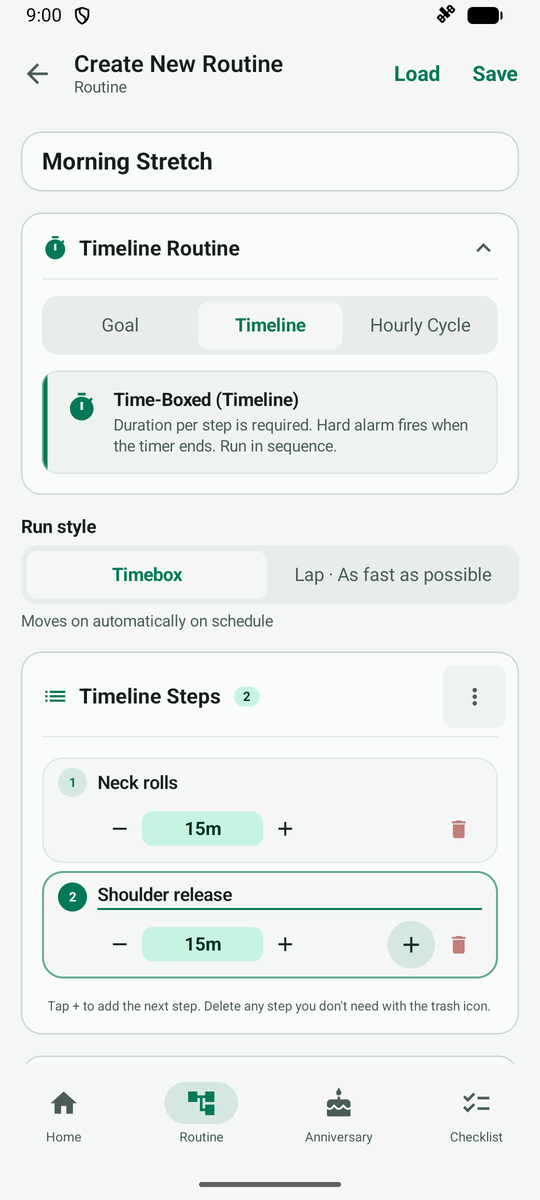
Type the name and tap the + button on the right to open the new routine screen. Pick the routine mode at the top and fill in the steps below. This example uses the step-by-step mode.
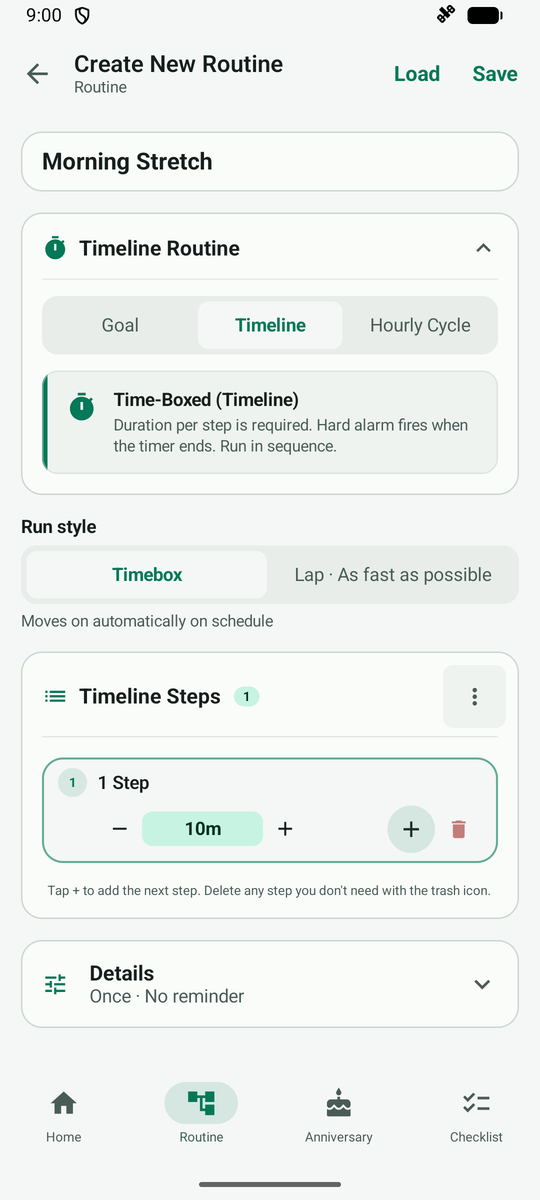
Type the name of the first step, then use the buttons next to the duration to adjust it in 5-minute steps.
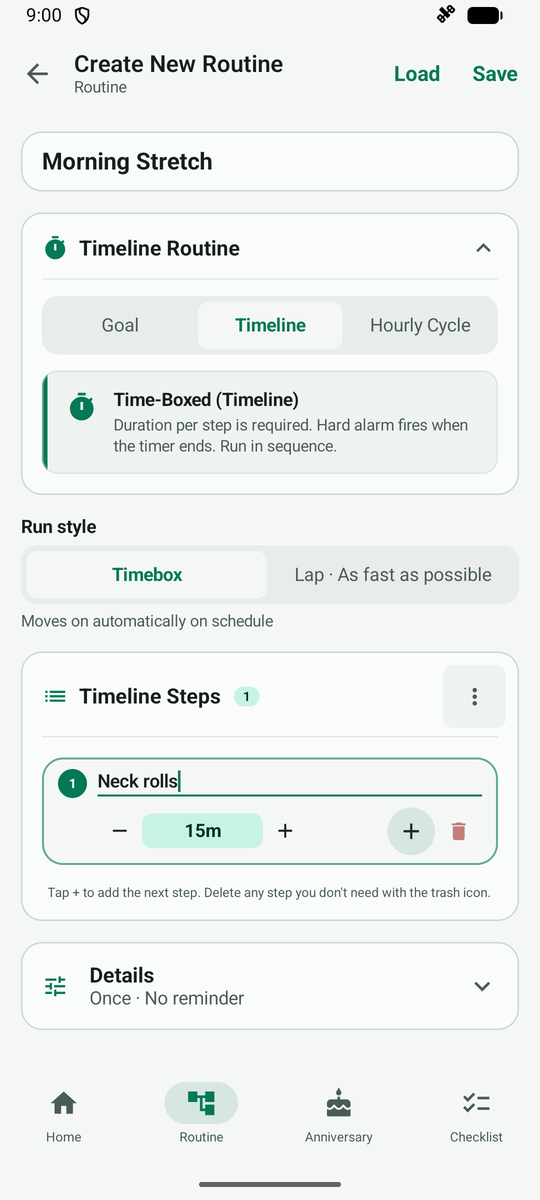
Tap Add next step to get another step field below. When all step names are filled in, tap Save at the top right.
After saving, a card appears in the routine list. Tap the card to open its detail screen.
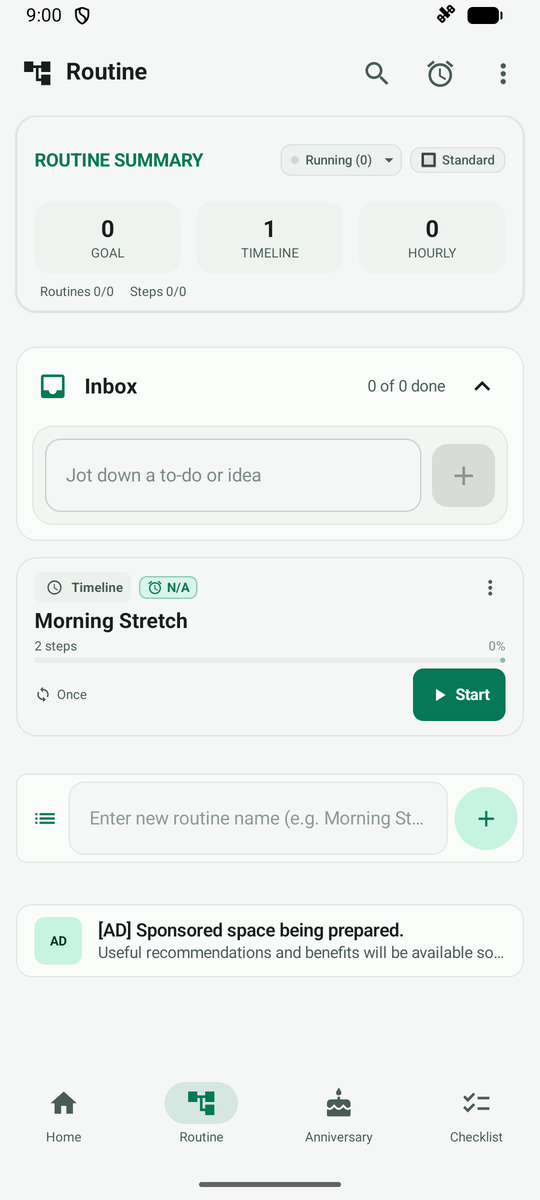
Tap Start at the bottom of the detail screen to begin the routine.
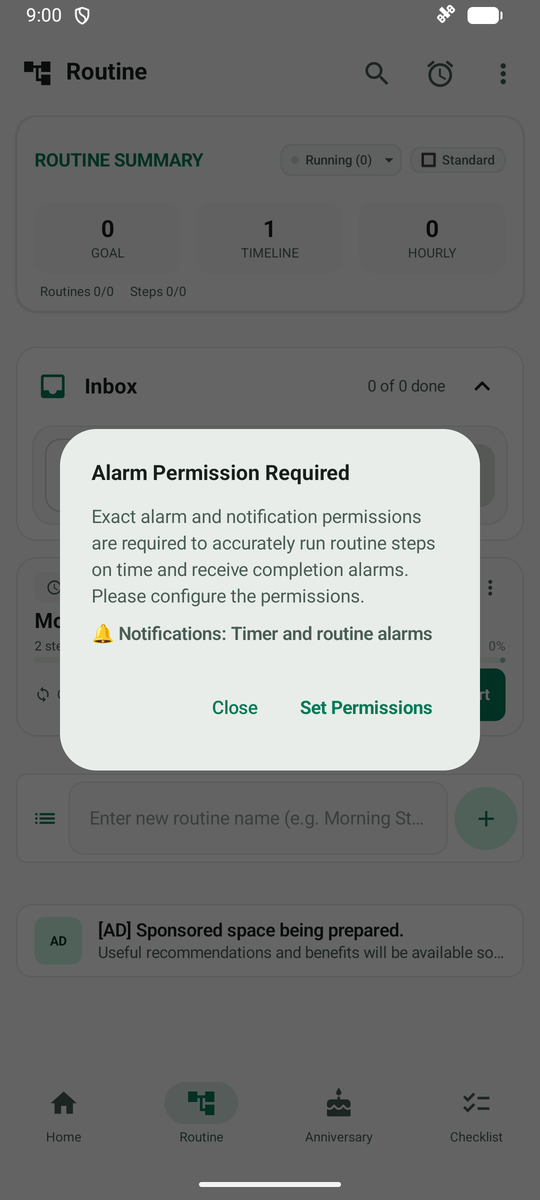
The first time you start a routine, a notice about the permission needed for step alarms appears. Follow it or close it.
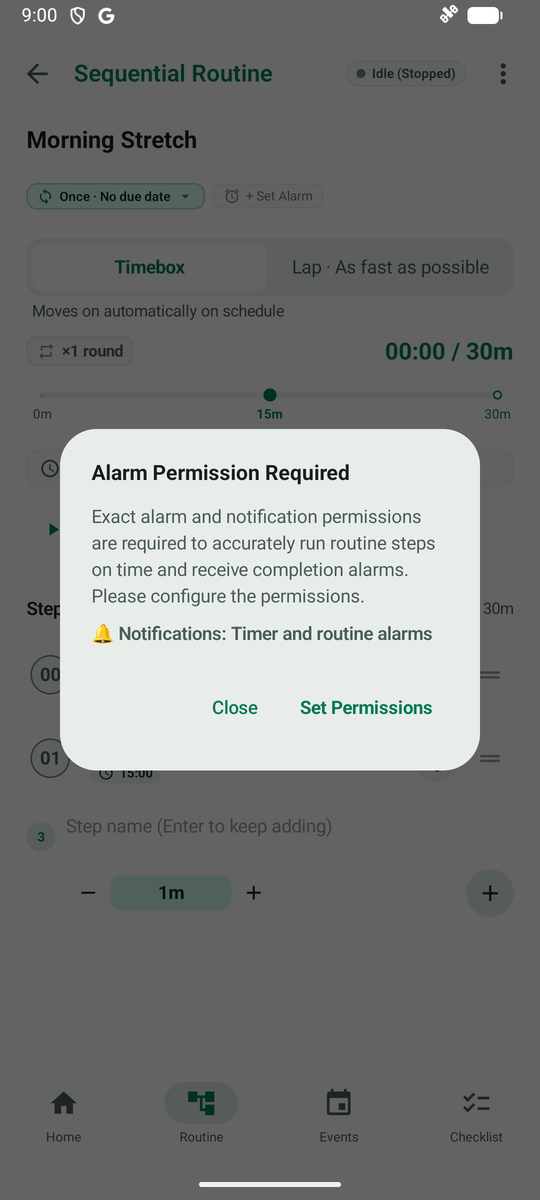
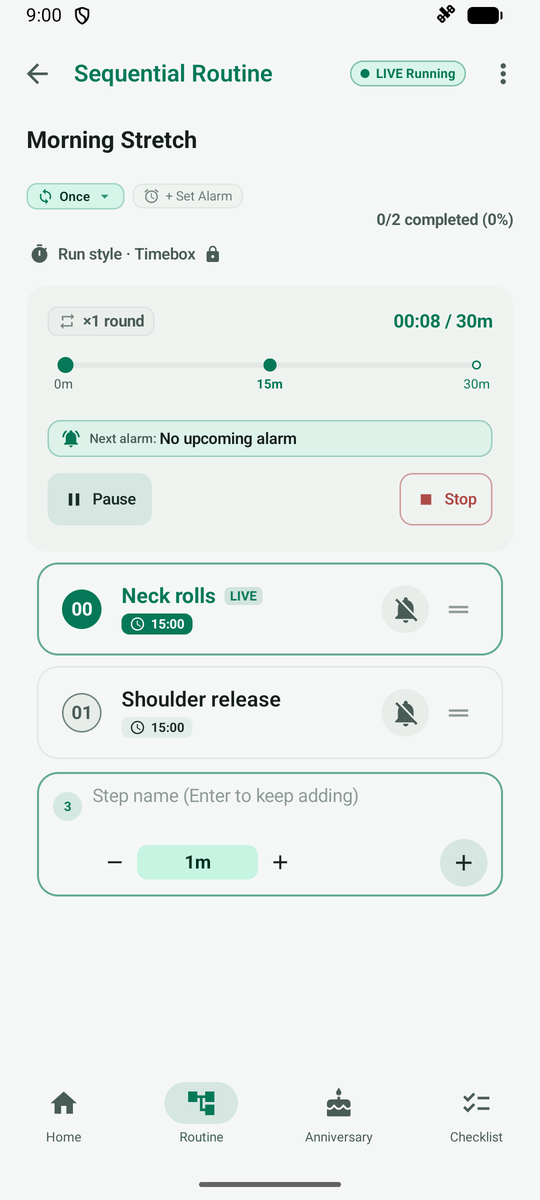
Once started, the step list and progress are shown, and you can pause or stop.