First Launch and Basic Setup
What you see the first time you open the app, and how to change the theme and language.
First, install the app from Google Play. Type atthetime or at the time in the Google Play search box, or use the link below.
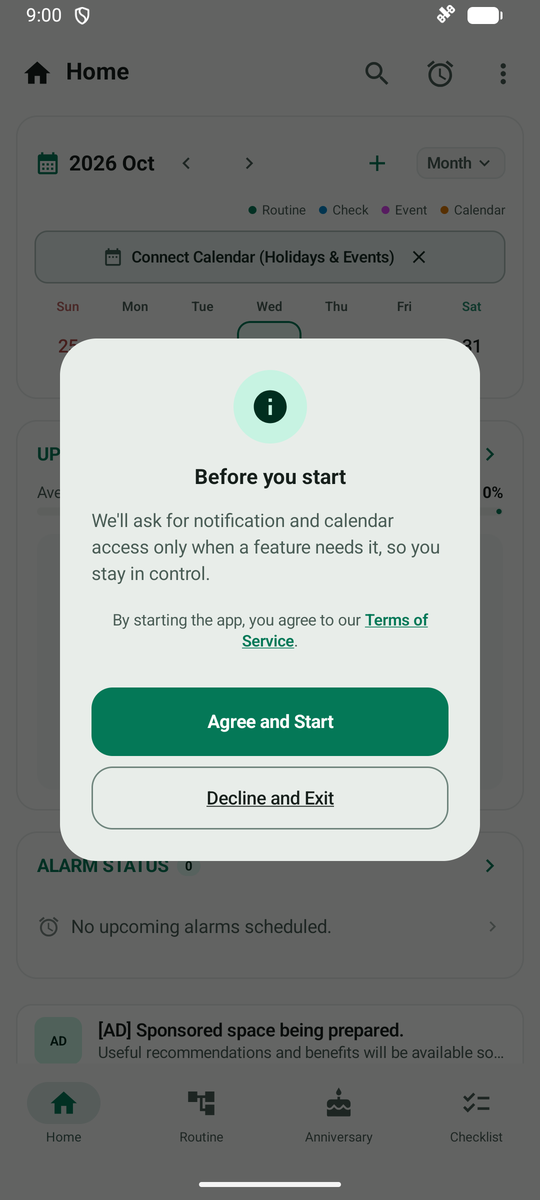
A short notice appears the first time you open the app. Tap Agree and Start. Notification and calendar permissions are asked for separately when you use those features, so you can skip them for now.
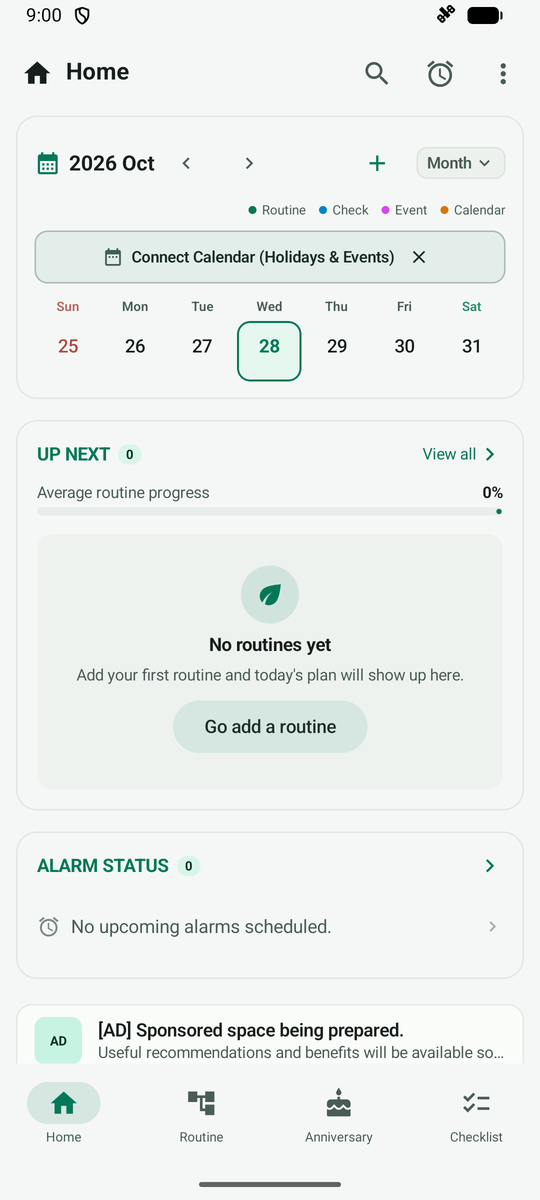
Home opens after you agree. Use the bottom tabs to move between Home, Routine, Anniversary and Checklist. Tap More (three dots) at the top right.
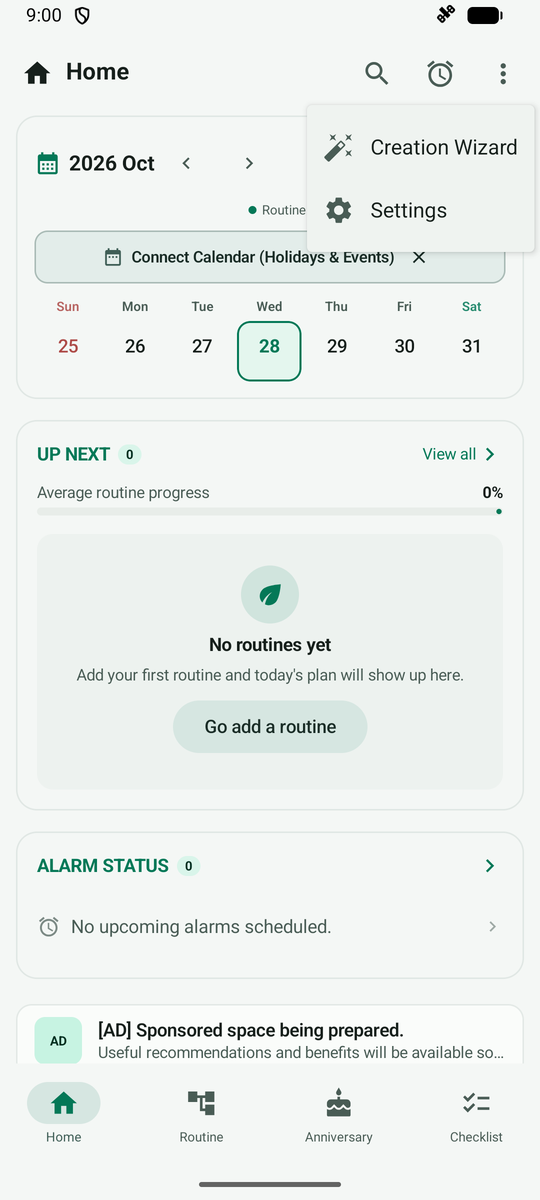
The More menu has Creation Wizard and Settings. Tap Settings.
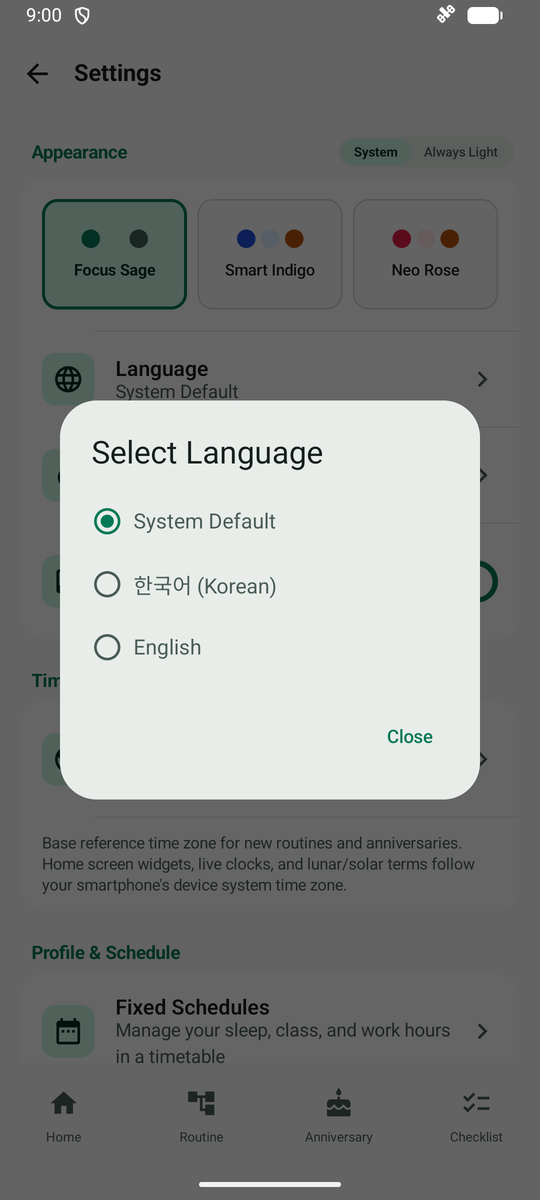
At the top of Settings, Appearance lets you switch the theme and change the app language. Tap Language.
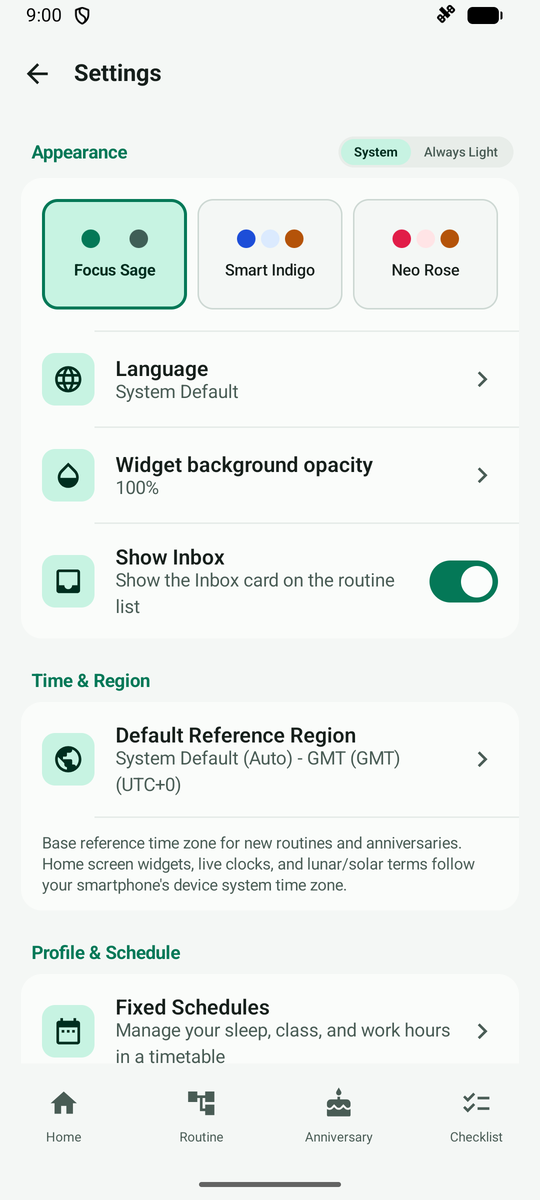
Choose System Default, 한국어 (Korean) or English. To keep the current language, just close the dialog.