Check, Add and Set Alarms for Milestones
When you save an anniversary, key milestones are created automatically. Here is how to add more milestones and set an alarm for each one.
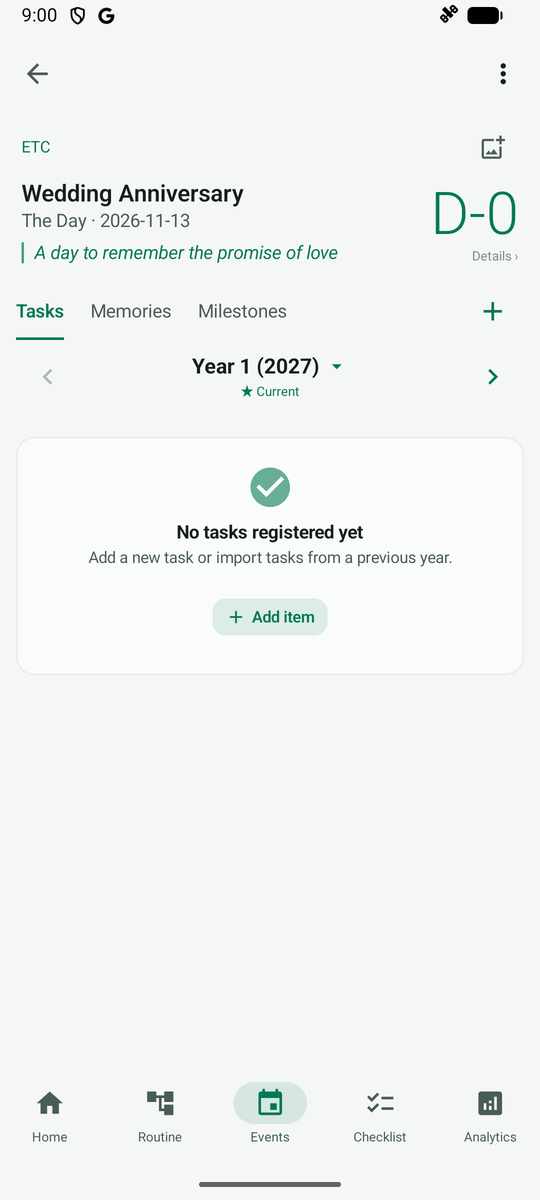
Tap an anniversary card to open its detail screen and see the days elapsed and upcoming milestones.
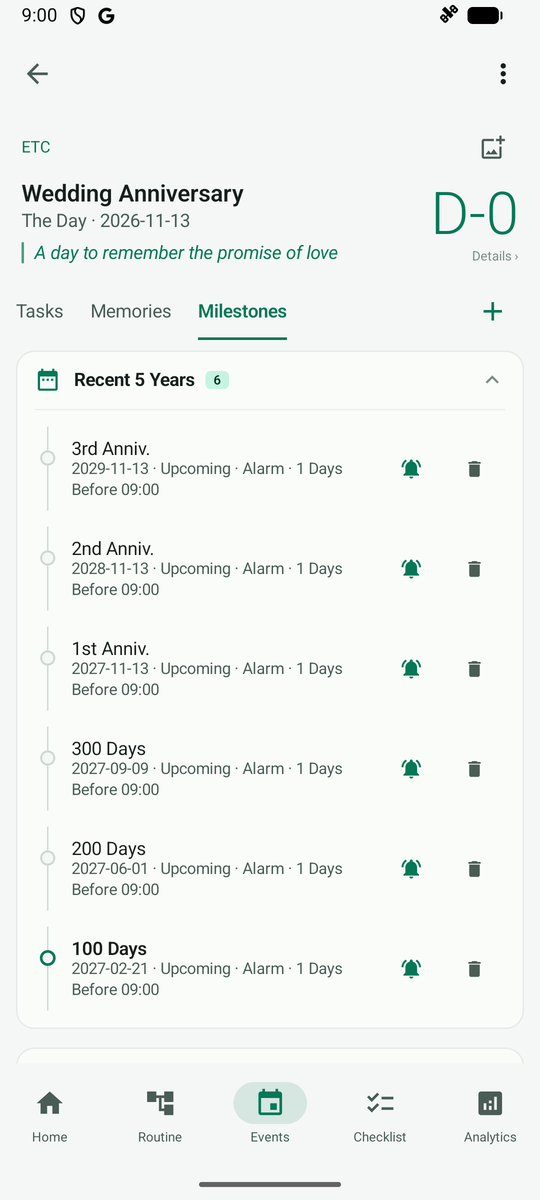
Scroll down to see the automatically created 100, 200 and 300-day milestones and the 1st, 2nd and 3rd anniversaries. Milestones more than 5 years out are folded into a group below. Tap + next to Sub-Milestones to add a new milestone.
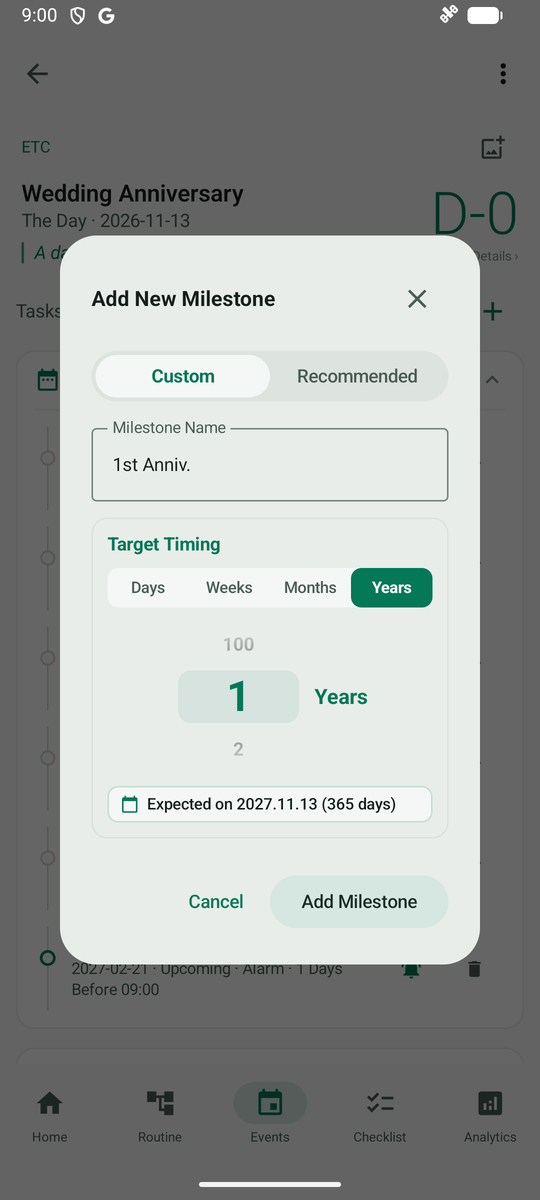
In the Custom tab, choose days, weeks, months or years and spin the wheel to check the target date right away.
In the Recommended tab, pick popular milestones such as 500 days or yearly anniversaries with a single tap.
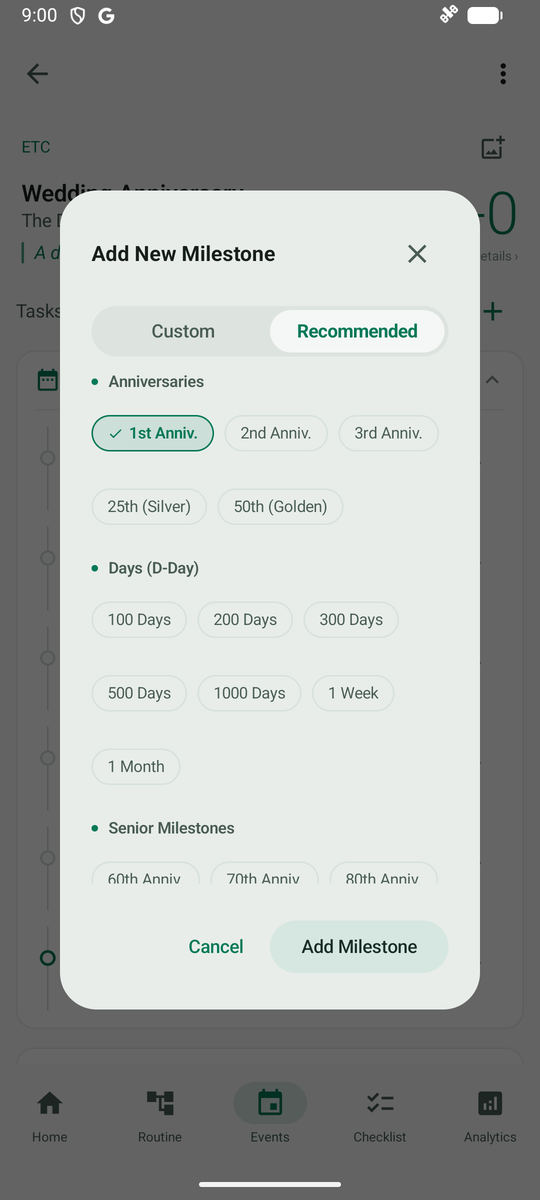
Pick a chip and tap Add Milestone to add it to the list. Tap the bell icon on the right to set an alarm for that milestone.
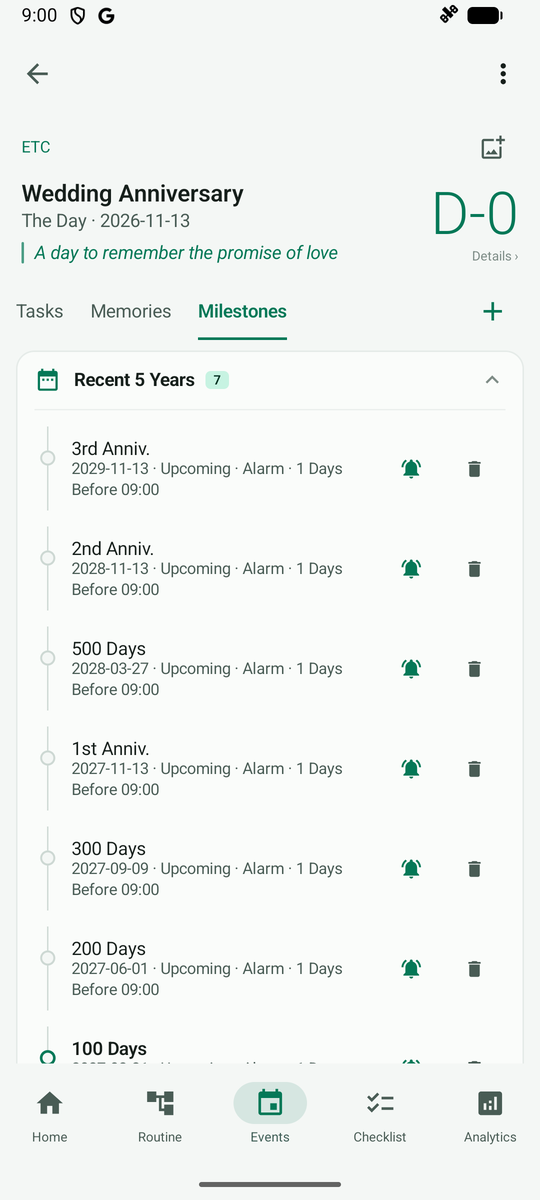
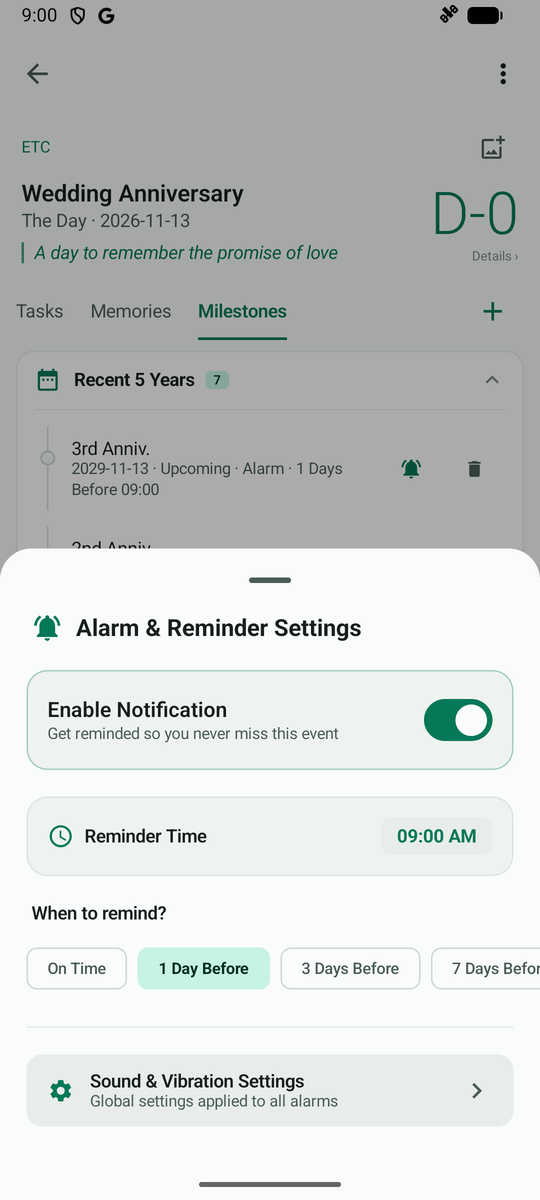
In the milestone alarm sheet, choose when to be notified—on the day, or 1, 3 or 7 days before—and tap Save.