Cosmetology Practice: Time Every Task with One Tap
You've run through your practical a few times, and you know you were slow. But where? Was it a task itself, or the time spent resetting your station between tasks? A single stopwatch for the whole run only tells you that you went over—it can't separate work time from break time or show which task ate the minutes.
Using the Lap · As fast as possible run style together with Start each step myself in At The Time lets you log how long each task takes, time your station resets separately, and see where the most time went. You don't need an exam to use it, either. Any job with several steps and prep time in between, like a cooking sequence or a cleaning routine, works the same way.
What you get from this use case
- Your real time for every task
- Separate tracking for station resets and prep time between tasks
- A summary of your biggest time sink
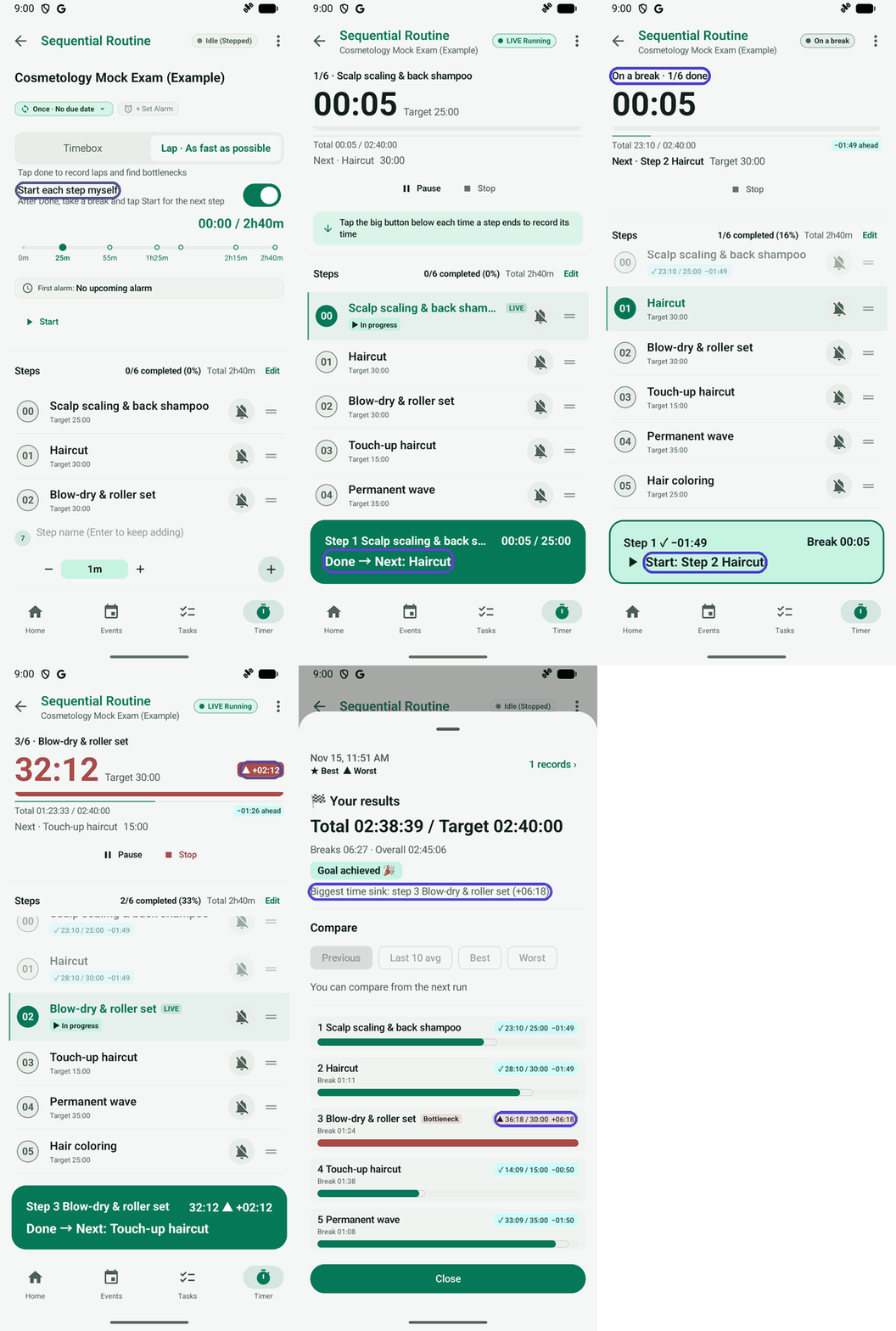
These are example values
The 6 step names and times in this use case (Scalp scaling & back shampoo 25 min, Haircut 30 min, Blow-dry & roller set 30 min, Touch-up haircut 15 min, Permanent wave 35 min, Hair coloring 25 min — 2h 40m total) are examples made up to show how the app works. They are not real exam rules. Check your own state board's task list and change the steps to match. The times shown on screen are also made-up values for demonstration.
Good to know first
A timeline routine in At The Time has two run styles:
- Timebox: each step runs for its set time and the routine moves on automatically.
- Lap · As fast as possible: you tap Done when you finish, so your real time for each step is recorded, and the results show where the time went.
When you also turn on Start each step myself, finishing a step doesn't start the next clock right away. Instead, the timer enters On a break so your station reset or prep time is tracked separately from your actual task time. For the basics of timeline routines, see Create a Step-by-Step Routine.
Method A. Start from the example file
If you'd rather not type the steps in yourself, you can import the example routine. The step names and times are examples, so change them to fit your own situation after importing.
The downloaded file is usually saved in the Downloads folder on your phone.
Tap Download the example file above to save the file to your phone.
Tap the downloaded file to open the Import Preview screen in At The Time right away. (If it doesn't open directly depending on your device or file manager, open the three-dot More options menu at the top right of Home → Settings → Data Management → Import Data and choose the downloaded file. For step-by-step screenshots, see Export and Import with a File.)
When the preview shows "Cosmetology Mock Exam (Example)" as New, tap Import.
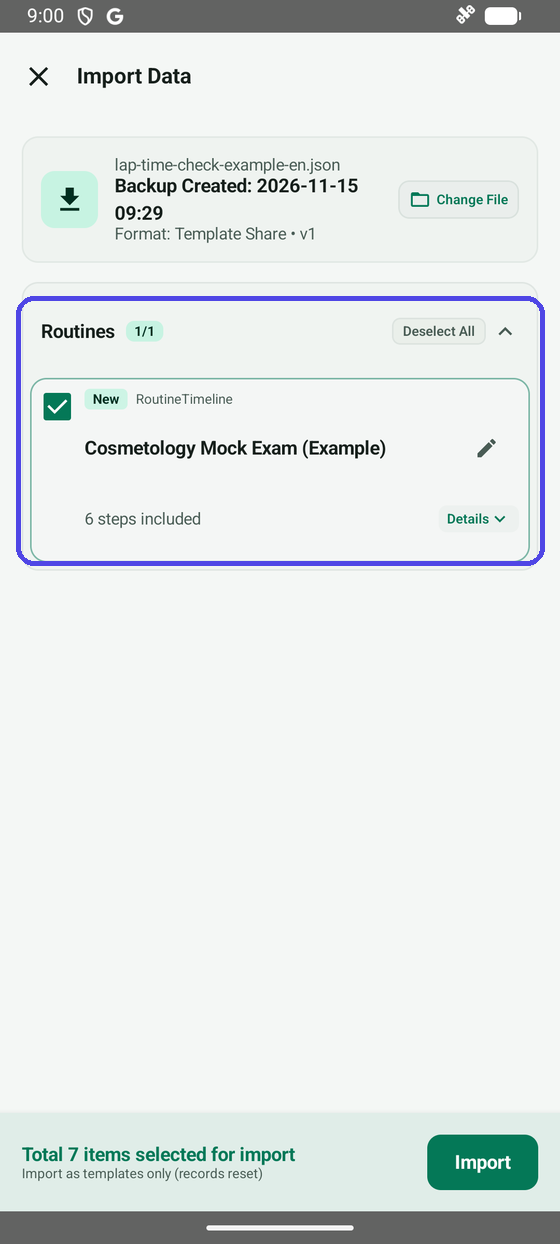
You'll find a "Cosmetology Mock Exam (Example)" card on the Timer tab. You can skip ahead to step 3 of Method B below.
Method B. Build it yourself
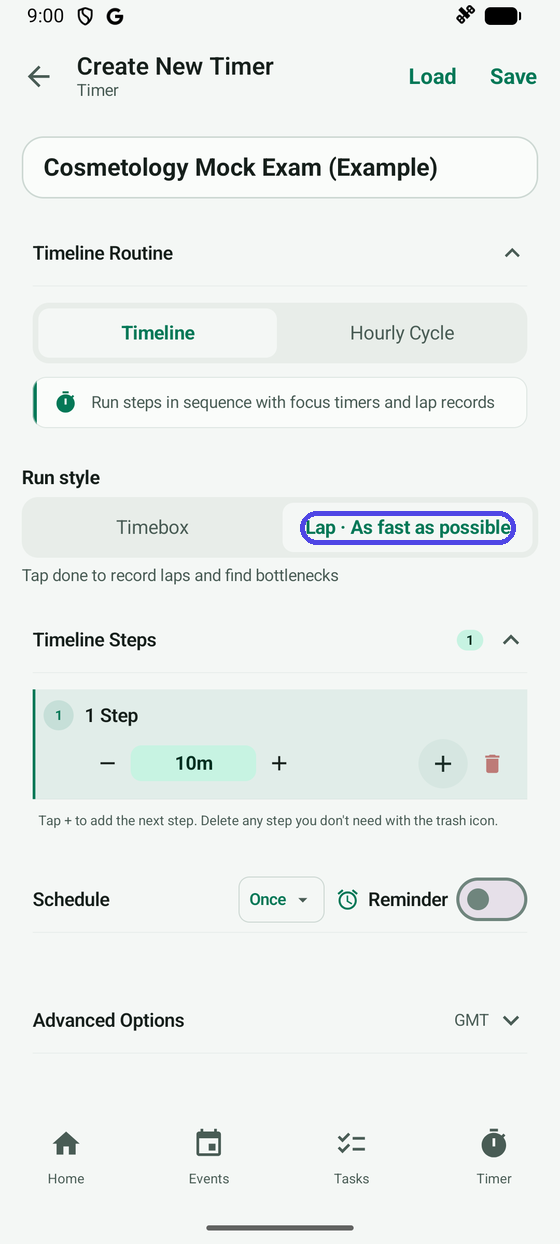
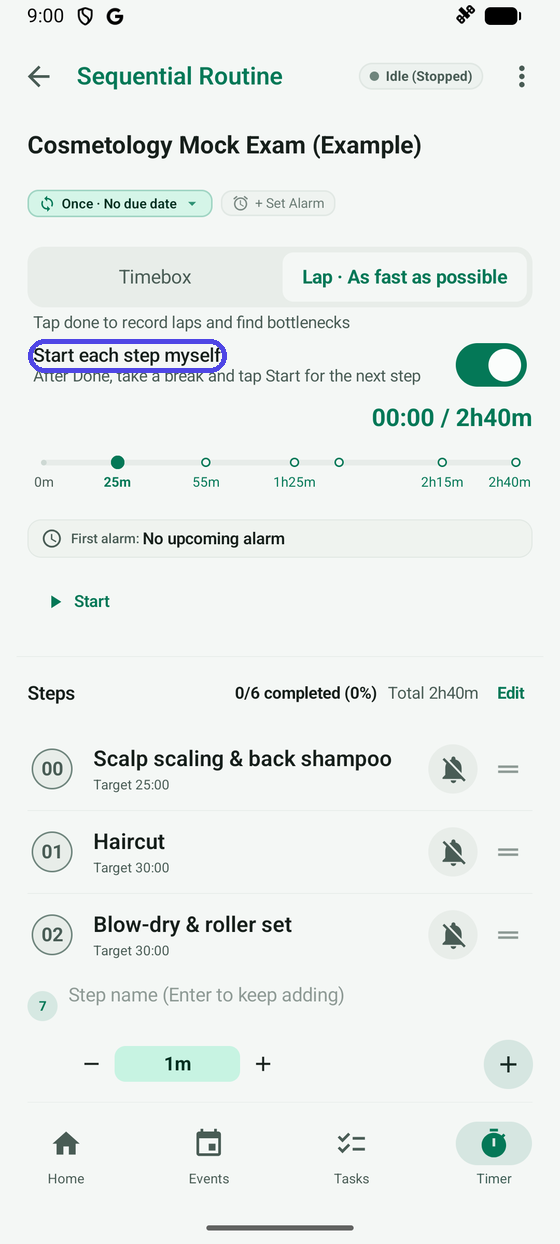
Type a name in the field at the bottom of the Timer tab and tap the add (+) button. The Create New Timer screen opens. With Timeline selected, tap Lap · As fast as possible under Run style. The line underneath changes to "Tap done to record laps and find bottlenecks," which tells you it's selected.
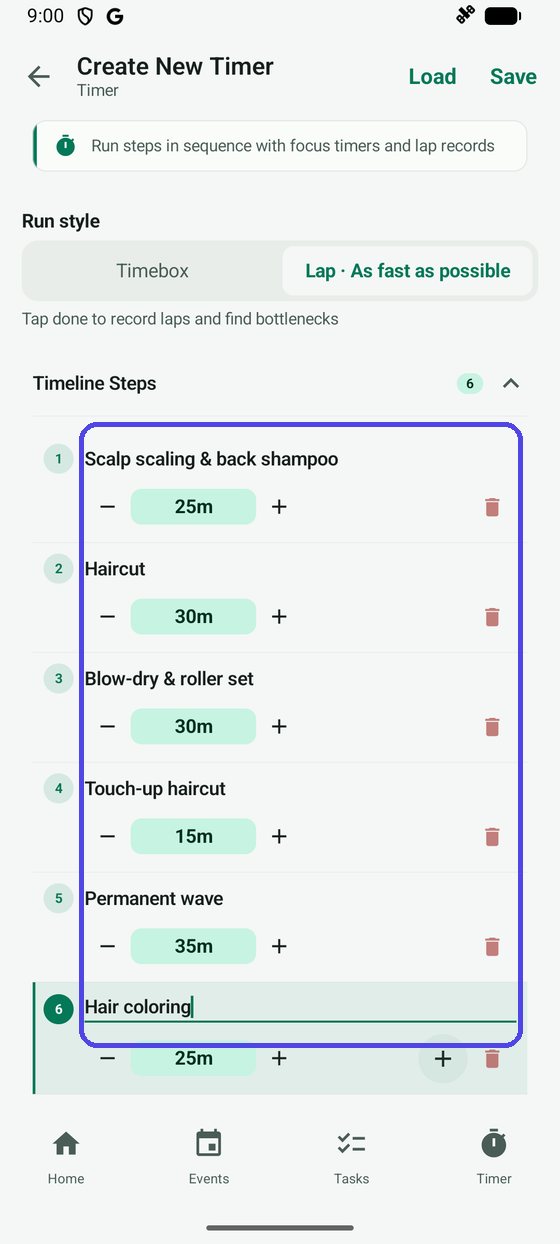
Type a step name, set its target with the − and + buttons, then tap + to add the next step. This example uses 6 steps (2h 40m total): Scalp scaling & back shampoo (25m), Haircut (30m), Blow-dry & roller set (30m), Touch-up haircut (15m), Permanent wave (35m), and Hair coloring (25m). When you're finished, tap Save at the top right.
Open the saved routine and turn on the Start each step myself toggle so station resets between tasks are timed separately. When you're ready to begin, tap Start.
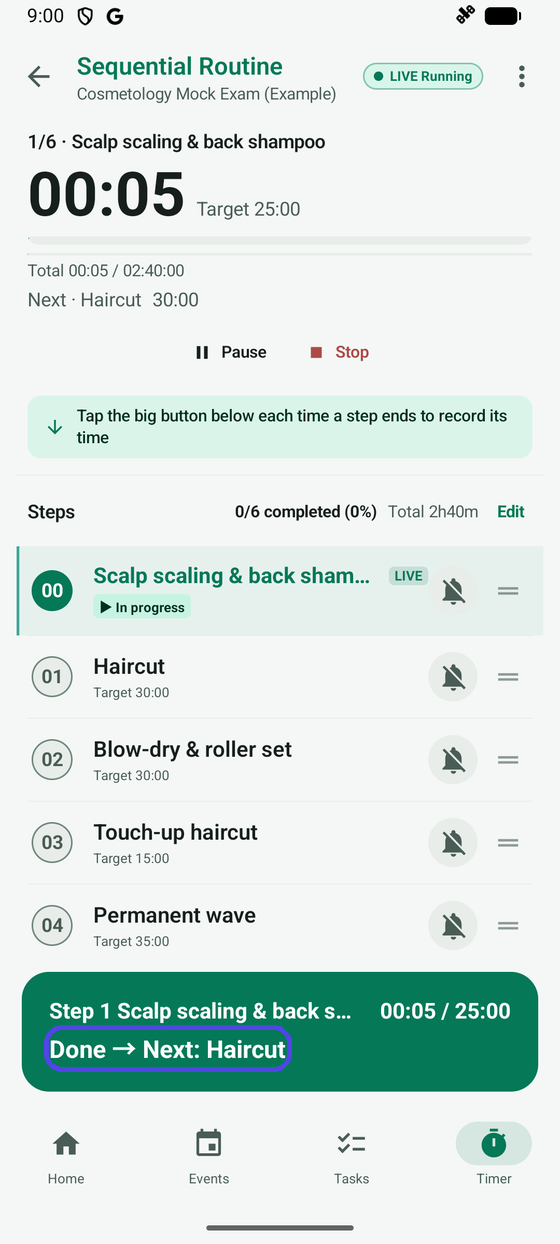
After you start, the focus header shows your current step and elapsed time, and a large green Done → Next: Haircut button appears at the bottom. Tap it when you finish each task to record that moment.
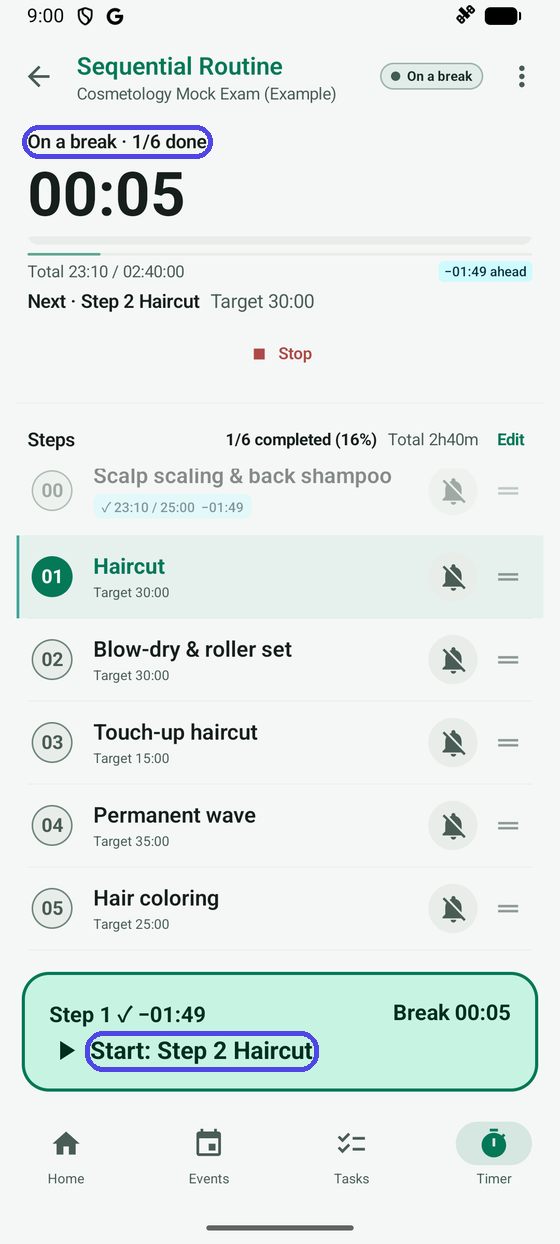
With Start each step myself turned on, tapping Done switches the timer to On a break and tracks your break time separately. When your station is ready for the next task, tap ▶ Start: Step 2 Haircut at the bottom. If you tapped Done by mistake, an Undo message appears briefly so you can take it back.
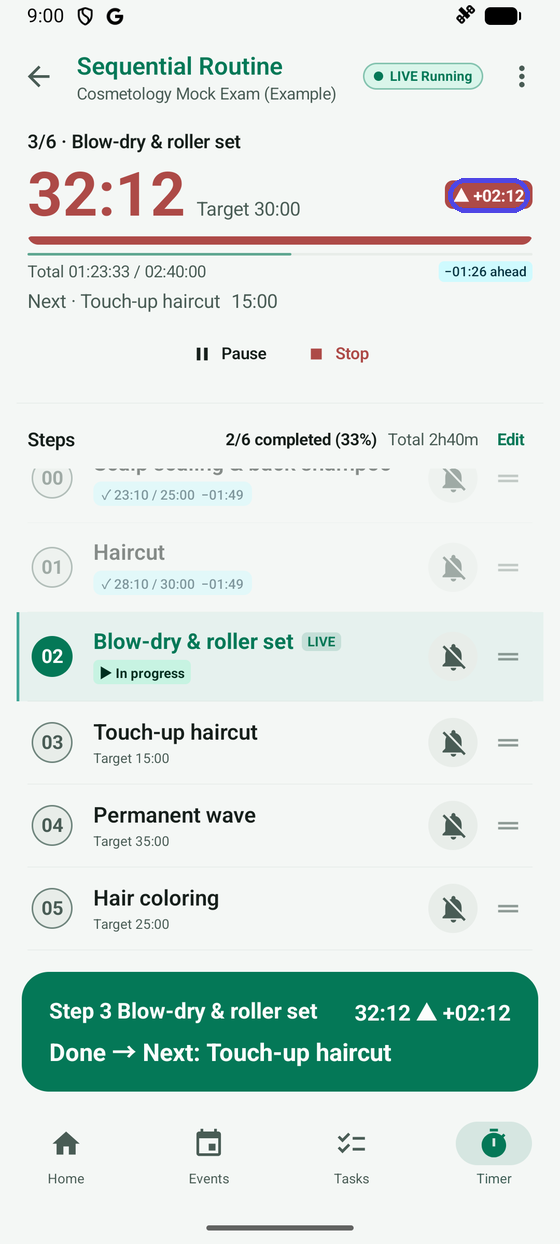
When a step runs past its target, the focus header highlights the extra time in red with a ▲ and a plus sign (such as ▲ +02:11). You can see you're falling behind while you're still in the middle of the task.
On the last step, tap Done · See results to open the Your results sheet. It shows your total work time (
02:38:39 / Target 02:40:00), break time (06:27), and the Biggest time sink, along with every step's difference from its target.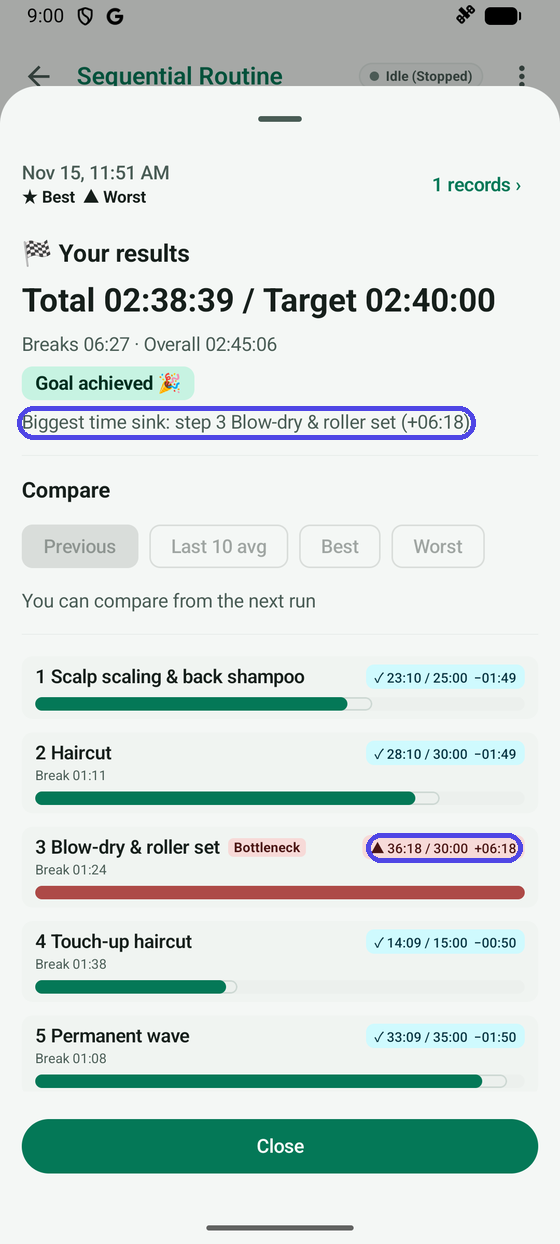
Reading your results
In this example, step 3 Blow-dry & roller set (+06:18) was tagged Bottleneck, and you can also see your total break time (06:27) separately. Separating work time from break time makes it clear whether you need to speed up a specific task or tighten your station resets on the next run.
Make it fit your situation
- Practice the same routine again: after your next run, the Compare section on the results sheet lets you compare it with earlier runs. Check whether the same task or break time runs long every time.
- Reopen the last results: tap Records on the routine's details screen to look at a finished run again.
- Switch to Timebox later: once you know your real pace, you can switch the routine to Timebox and practice sticking to a schedule. Change the run style while the routine is stopped.
- Change only the names and times: edit the step names and targets to match your own exam or task, and the same routine works for anything else.